What We’ll Cover
If you’re in sales or customer service, you know the challenge: the communication and activities around any given client can pile up fast. Emails in one inbox, meeting notes in a doc somewhere, call logs in a spreadsheet. No single place to see the full picture of a relationship.
The Emails & Activities app in monday CRM is designed to solve exactly that. Everything customizable, everything connected — in true monday.com fashion. Here’s how it works.
What is the Emails & Activities app and where does it live?
The Emails & Activities app is automatically built into every entity board in monday CRM. That includes your Contacts, Leads, Accounts, and Deals boards — the core boards where your customer relationships live. You can also add the Emails & Activities app to any other board in monday CRM if your workflow calls for it.
The app gives you a centralized view of all communication and activity tied to a specific contact, deal, or account. Everything lives in one timeline rather than scattered across separate tools.
Connecting your Gmail or Outlook account
To get started, you’ll need to connect your Gmail or Outlook account to the Emails & Activities app. Click the cog icon in the top right corner of the app to get to the connection settings.
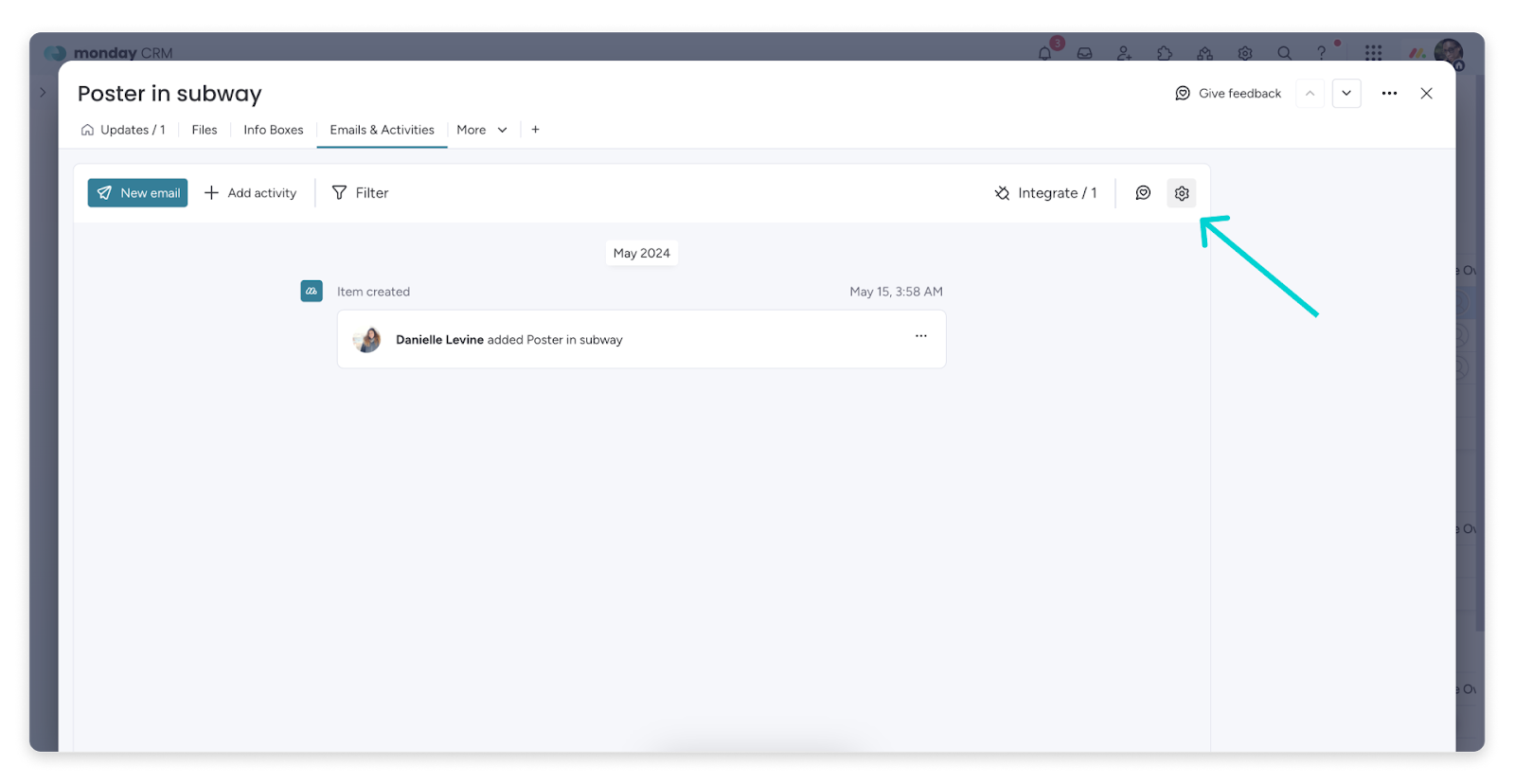
If you want to use Emails & Activities on the monday CRM mobile app, you must first connect your email address on a computer. The mobile connection requires the desktop setup to be completed first.
Composing and sending emails
Once your Gmail or Outlook is connected, you can compose and send emails directly from within monday CRM without switching to your inbox. The app features a fully functional text editor: you can format text, add links, attach files, and more. If you get stuck mid-draft, you can ask monday AI for assistance with generating or refining your email content.
Sending emails from monday CRM rather than your external inbox keeps the communication history attached to the relevant record automatically — no manual logging required.
Tracking email opens and read receipts
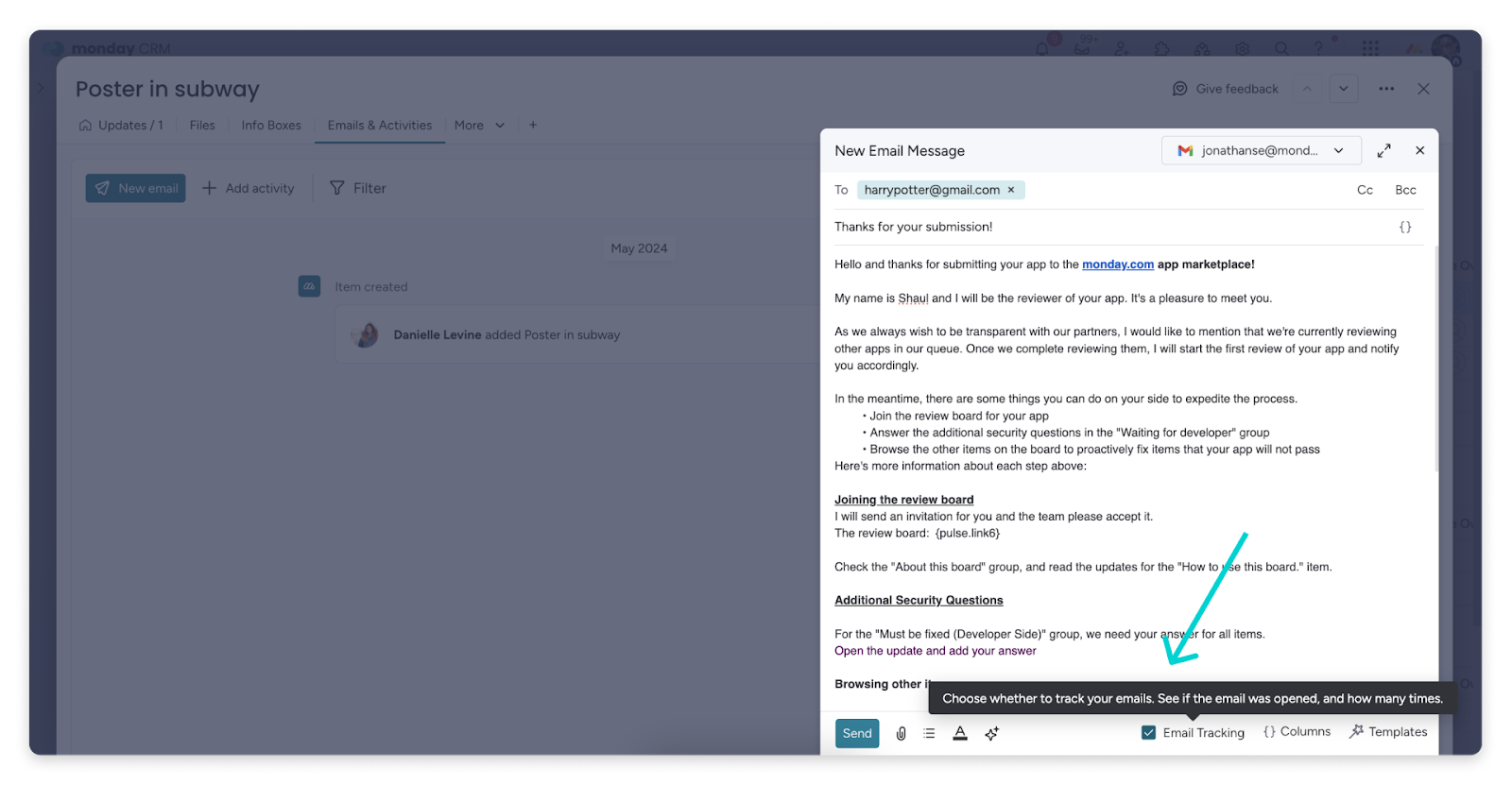
Knowing whether a prospect or client has opened your email can be valuable context before a follow-up call. The Emails & Activities app includes email tracking that shows read receipts directly within the app.
To enable tracking, check the “email tracking” option at the bottom of the email editor before sending:
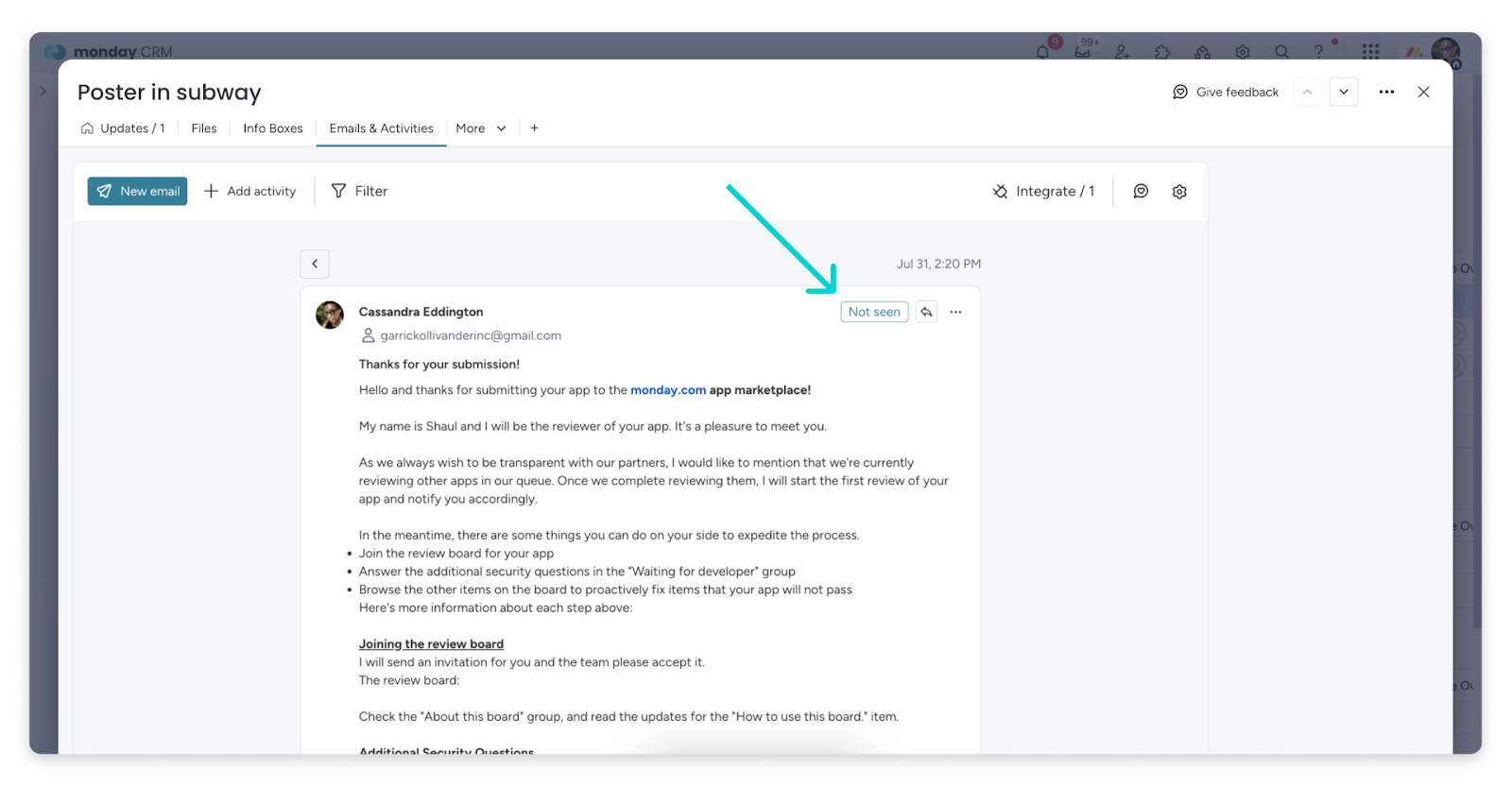
After the email is sent, you can see whether it’s been opened and how many times directly in the top right corner of the sent message:
Automating lead update tracking
In addition to email, the Emails & Activities app tracks phone calls, notes, and other activities. You can set up an automation that updates a date column on your board any time an email, phone call, or other activity is posted in the app — making it easy to see at a glance when you last had any interaction with a lead.
To set this up, go to the Automation center, search for “Emails & Activities,” and scroll down to the “Apps” results:
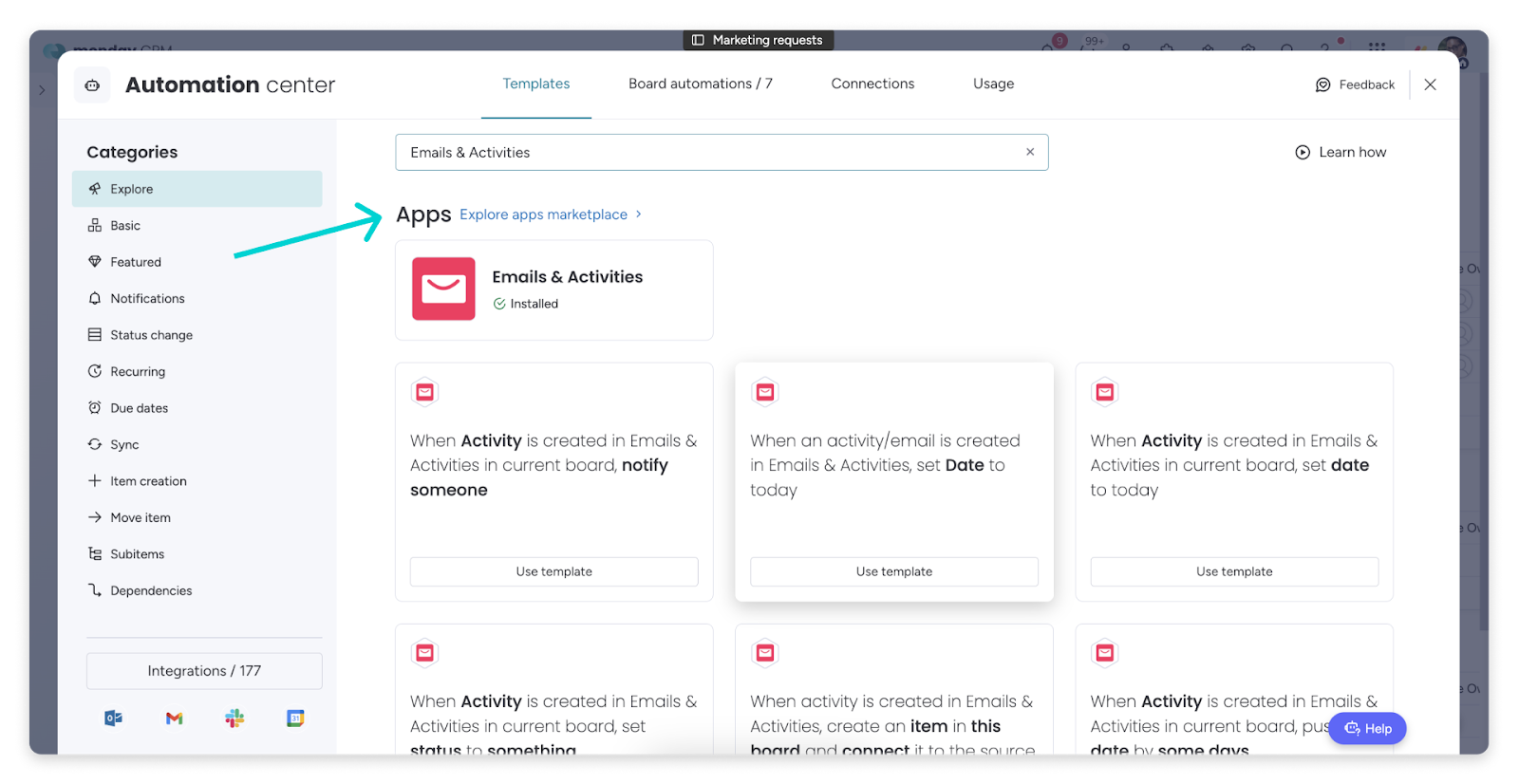
Once this automation is active, your board always reflects the most recent interaction date for every lead — without anyone having to manually update it.
Manage all client activity in your timeline
Client relationships involve more than email, and the Emails & Activities app is designed to hold all of it. One of the most useful features is the comprehensive activity timeline view, which shows every type of interaction — emails, phone calls, meeting notes, events — in one central place.
The timeline is fully filterable. You can narrow the view to show only the activity type you care about (emails, notes, calls, or events), filter by a specific date range, or combine multiple filters to see exactly the information you need — for example, all emails sent during a specific campaign window:
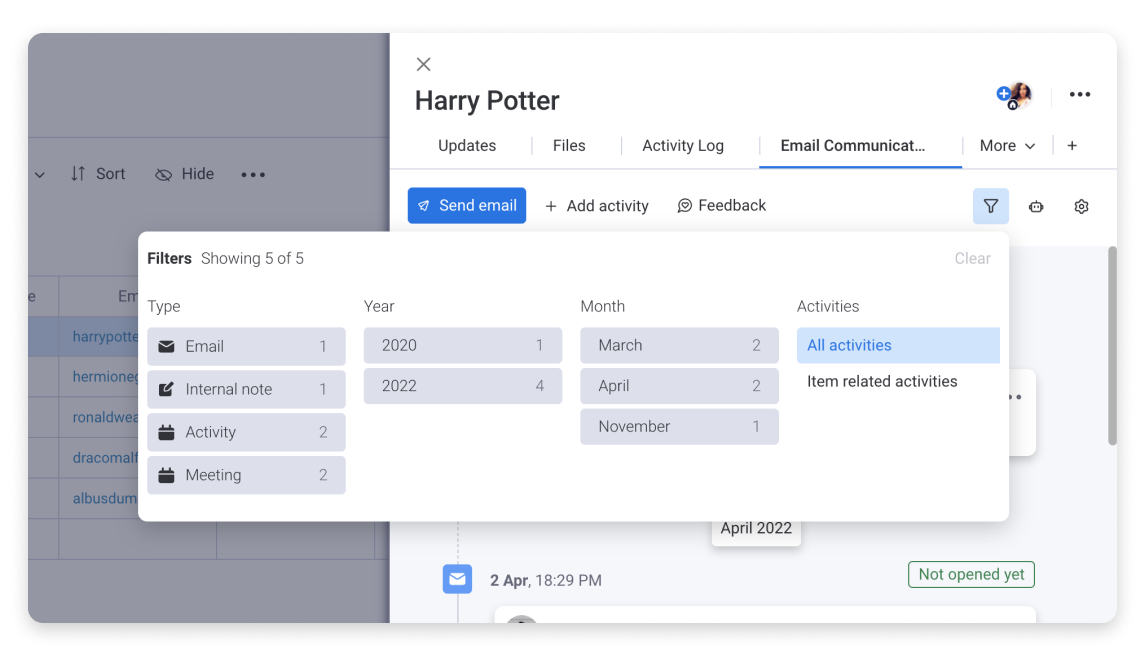
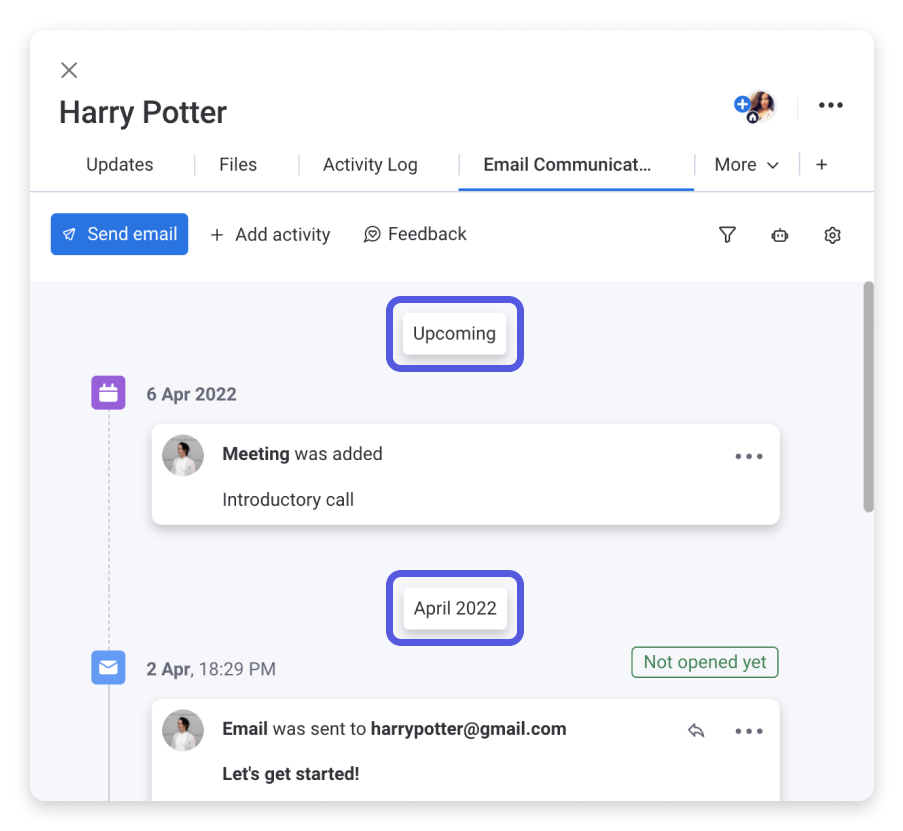
For sales reps managing a large pipeline or account managers tracking ongoing client relationships, this timeline view replaces the manual work of digging through separate tools to reconstruct a communication history. Everything is already there, organized, and searchable.
There’s a lot more to explore in the Emails & Activities app. If you want help figuring out what makes sense for your organization’s workflow, OrangeDot can walk you through the setup and help you get the most out of monday CRM.
Schedule a Free Consultation →